Most viva problems are setup problems. This article covers the technical requirements, the checks Integrevise will run with you before the session begins, and the conditions that make the conversation easier on the day.
What you need
Integrevise runs in any current browser on a laptop or phone. Specifically:
- A current version of Chrome, Edge, Safari, or Firefox. Chrome is the most consistent.
- A working camera and microphone. The built in camera and microphone on a laptop or phone are sufficient.
- An internet connection of at least 5 Mbps. Wired connections are most stable; Wi Fi works well within range of the router.
You do not need a headset or specialist hardware. Closing other applications that share your bandwidth (video calls, downloads, streams) before you start will reduce the chance of audio or video issues.
The setup checks
When you select Start Viva, Integrevise opens a short setup screen before the session begins. The checks cannot be skipped, and any of them can be re run if needed.
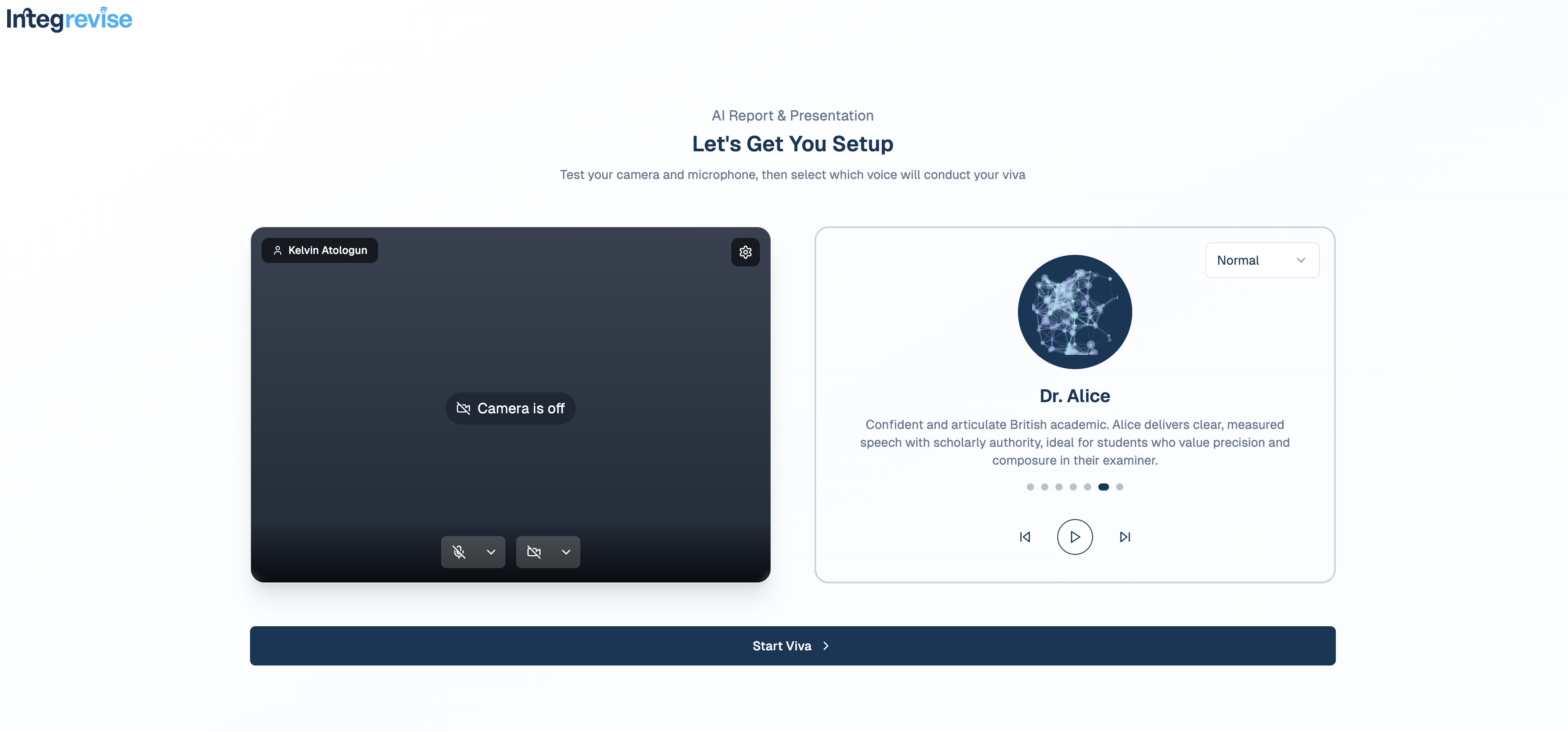
The checks cover:
- The session language.
- Camera permission and a live preview.
- Microphone permission and an audio level reading.
- A network quality check.
- A confirmation screen before the session begins.
If any check does not pass, the setup screen explains what needs to change before you can continue.
Choosing where to take your viva
A few practical points about the room:
- Light. Face a window or lamp rather than sitting with a strong light source behind you.
- Sound. A quiet room with the door closed. Notifications on your phone and computer are best silenced for the duration of the session.
- Stability. A desk or table is more comfortable than a sofa, and on a phone, propping the device against something keeps the camera steady.
For what is shown on screen during the conversation and what is appropriate to have around you, see What You Can Have With You During a Viva.
On a phone or a laptop
Both work, and the session itself is identical. The layout adapts: on a laptop, the elements are arranged side by side; on a phone, they stack vertically.
The first time you use Integrevise on a new browser, you will be asked to grant permission to the camera and microphone. After that the browser remembers.
Accessibility
Integrevise supports keyboard navigation, screen readers, and adjustable text size through your browser. Live captions are available during the session.
If you have a reasonable adjustment in place at your university (extended time, a different format, an assistive tool), please let your lecturer know before the scheduled date so the same arrangements apply to your viva.
Before you start
If you find yourself nervous about a viva, Managing Viva Anxiety covers what helps before and during the session. The controls available in the session itself are described in During Your Viva.
When you are ready, open the viva from your dashboard and select Start Viva.